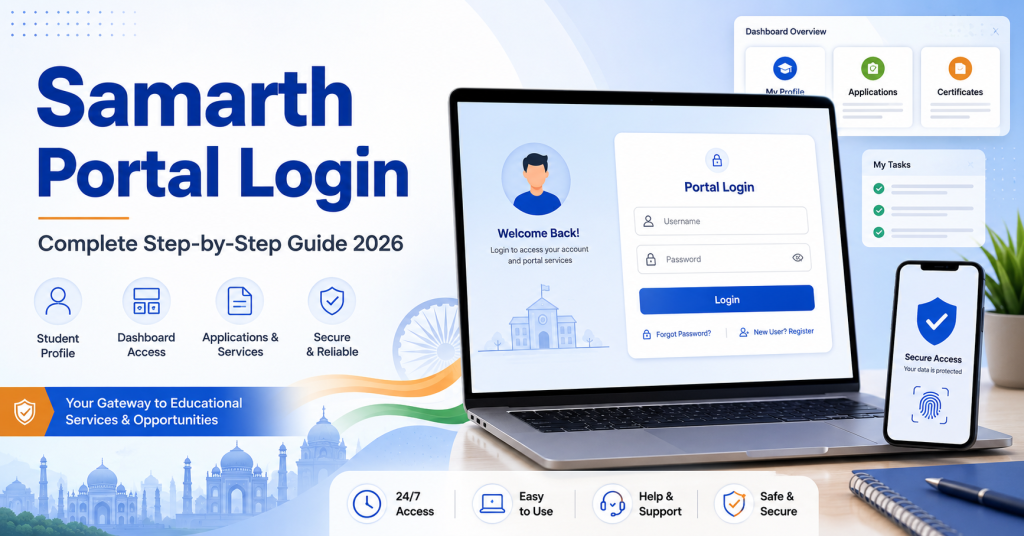
Samarth Portal Login: Complete Step-by-Step Guide 2026
If you’ve searched “samarth portal login” and landed here, you’re probably staring at a login screen for your university’s student portal, wondering why it isn’t accepting your details, or just trying to figure out the process for the first time. Samarth Portal login works largely the same way across the dozens of Indian universities that use it, even though the branding, colours, and exact wording change from one university to another. This guide walks through the general process, the credentials you need, and the errors that come up most often, whichever university’s version of Samarth you happen to be using.
What “Samarth Portal Login” Actually Means
Samarth refers to the Samarth eGov Suite, a set of software modules developed to help Indian universities manage student records, admissions, exams, and fees digitally. Each university runs its own instance of this system, tied to its own domain and branding, but the underlying login mechanics stay fairly consistent: a registration number or student ID, a password, and usually a captcha. So “samarth portal login” isn’t one single website; it’s a pattern used by many different university portals, and the one you need depends entirely on which university you’re enrolled at.
Why People Get Confused About Which Portal to Use
A common mistake is searching generically for “samarth portal login” and clicking the first result, which may belong to a completely different university than yours. Since many of these portals look visually similar, it’s easy to enter your details on the wrong site without immediately realising it. Always start from your own university’s official website and follow the Samarth Portal link from there, rather than trusting a bookmarked or searched link you’re not fully sure about.
Step-by-Step: Logging Into Samarth Portal
- Go to your university’s official website. Do not rely purely on a search engine result for the login page itself; navigate from the homepage’s official link.
- Find the “Samarth Portal,” “Student Login,” or “ERP Login” option, typically in the main menu or a prominent banner.
- Enter your registration number, enrollment number, or student ID – whichever your specific university issues as your login identifier.
- Enter your password. If you’ve never logged in before, check whether your college issued a temporary password that needs to be changed on first use.
- Complete the captcha shown on screen.
- Click Login to reach your student dashboard.
Credentials You’ll Typically Need
- Your registration number or student ID (format varies by university, usually printed on your admission letter or first admit card)
- A password, either self-set during registration or a default one issued by your college
- A registered mobile number and email address, used for OTP verification during password recovery
First-Time Login After Fresh Admission
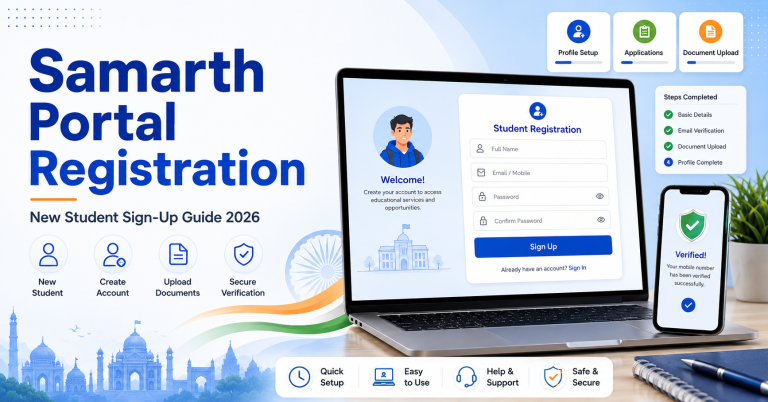
If you’ve just been admitted and this is your first attempt at logging in, most Samarth-based portals require an initial registration or activation step rather than a direct login:
- Look for “New Registration” or “First Time Login” on the portal’s homepage.
- Verify your identity using your registration number along with your date of birth or an OTP sent to your registered mobile.
- Set your own password, replacing any default or temporary one.
- From this point on, use the regular login option for future visits.
If there’s no visible activation option and the standard login simply won’t accept your details, your account may not be fully set up yet. This usually happens in the first one to two weeks after admission, while your college is still uploading student data to the central system.
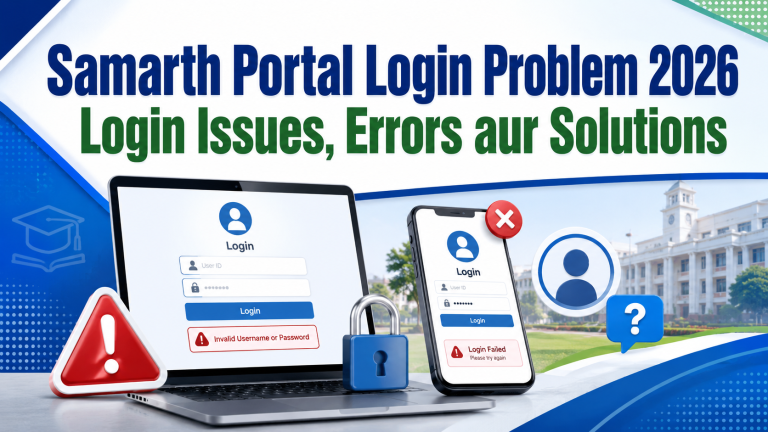
Common Login Errors and What They Actually Mean
Login errors on Samarth-based portals tend to repeat across universities, since the underlying framework and its error-handling logic are shared. Here’s a quick reference table, followed by a deeper look at the three errors that cause the most confusion.
Quick Reference: Samarth Portal Error Messages
| Error Message | Likely Cause | What To Do |
|---|---|---|
| Invalid Credentials | Typo, extra space, caps lock on, or account not yet activated | Retype details fresh instead of copy-pasting; confirm caps lock is off |
| Account Locked / Too Many Attempts | Several consecutive wrong password attempts | Stop trying immediately; wait 15-30 minutes before attempting again |
| Session Expired | Page left idle too long, or multiple tabs open | Close all portal tabs, clear cache, log in fresh in one tab |
| OTP Not Received | Outdated registered mobile number, or network delay | Wait 10 minutes; if nothing arrives, update your number through your college |
| Page Not Loading / Timeout | Heavy traffic near a deadline | Try again during early morning hours instead of peak evening traffic |
| Captcha Keeps Failing | Hard-to-read captcha text | Refresh the captcha a few times rather than repeatedly guessing |
The Three Errors Worth Understanding in Detail
Invalid Credentials Error on Samarth Portal Login
This is by far the most searched login error, and it’s rarely actually a forgotten password. In most cases it’s one of three things: an accidental space at the start or end of your registration number when copy-pasting from a document, caps lock silently turned on, or an account that technically exists but hasn’t finished activation on the university’s backend. Typing your details fresh, character by character, resolves this more often than people expect.
Account Locked After Failed Login Attempts
Samarth-based systems apply a temporary security lockout after a handful of consecutive wrong password attempts, generally somewhere between 15 and 30 minutes. Continuing to try during this window doesn’t help and can sometimes extend the lock further. The right move is to stop, wait, and come back with either your correctly recalled password or a proper reset.
OTP and Session-Related Errors
OTP delivery issues almost always trace back to an outdated registered mobile number rather than a network fault, especially for students who registered years ago with a number they no longer use. Session expiry errors, on the other hand, usually come from leaving a tab open too long or having the portal open in more than one browser tab simultaneously, which can confuse the login session on some Samarth implementations.
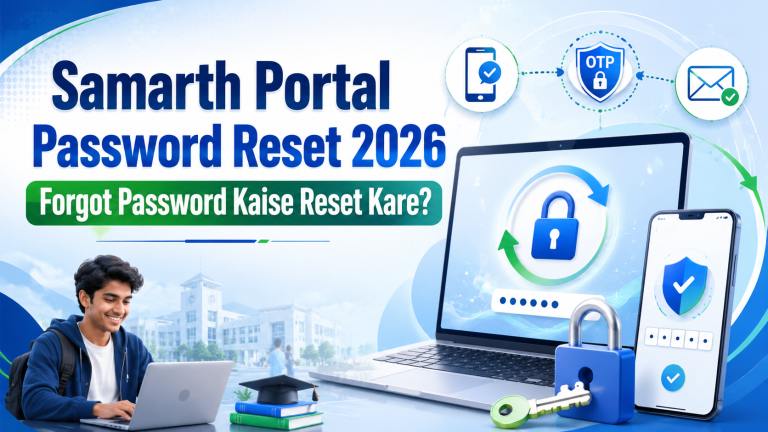
Forgot Password: General Recovery Process
- Click “Forgot Password” on your university’s Samarth login page.
- Enter your registration number and the mobile number or email registered with your account.
- Enter the OTP sent to you, typically within a 5 to 10 minute window.
- Set a new password you’ll actually remember, ideally different from passwords you use elsewhere.
If your registered contact details are outdated, which happens often for students who changed their number between school and college, this automated process won’t reach you. In that case, visiting your college’s exam or IT support office in person, with your original admission documents, is the more reliable way to get your account reset.
Logging In Safely on Shared or Public Devices
A lot of students access the Samarth Portal from cyber cafes, college computer labs, or a friend’s phone, especially in the first year before they have their own reliable device. If you’re in this situation, always log out properly using the logout button rather than simply closing the tab, and never let the browser save your password on a device you don’t personally control. Your portal login protects your fee records, personal details, and eventually your degree paperwork, so it’s worth the extra ten seconds it takes to log out properly.
Why the Portal Feels Slow at Certain Times
If you notice the login page or dashboard loading unusually slowly, it’s very often tied to timing rather than a fault with your specific account.
Peak Traffic Windows That Slow Down Samarth Portal
Registration Week
The first week or two of each new academic session sees a spike as every student across every affiliated college tries to complete registration at once. Colleges with larger student numbers feel this most acutely.
Exam Form Deadlines
Traffic climbs steadily as an exam form deadline approaches, peaking sharply on the final day. This is the single most predictable slow-down period on almost any Samarth-based portal.
Result Declaration Days
The first few hours after a result is declared bring a rush of students checking simultaneously. A blank or slow-loading result page in this window usually isn’t an error specific to you.
Trying early in the morning, rather than the evening before a deadline, generally gives a smoother experience across all three scenarios above.
Login Security: Habits Worth Building
Your Samarth Portal account, whichever university it belongs to, sits behind your fee history, exam records, and eventually your degree paperwork. A few habits genuinely help protect it: avoid reusing the same password across multiple accounts, update your registered mobile number the moment it changes rather than waiting until you actually need a reset, and treat any unsolicited call or message asking for your password or OTP as suspicious. No legitimate university staff member needs your password to help you with an account issue – anyone asking for it directly is very likely trying to access your account rather than fix it.
What to Do When Nothing in This Guide Fixes the Issue
Not every login problem is something the standard troubleshooting steps can resolve, since some issues live in your college’s records rather than the portal’s technical setup. If you’ve tried the correct login details, confirmed caps lock is off, waited out any temporary lockout, and reset your password without success, the next step is contacting your college’s exam cell or IT support directly, ideally in person with your admission documents. Portals like Samarth are built to serve very large numbers of students at once, and a records-level fix, like activating a delayed account or correcting a wrong registration number, usually needs a human at your college to intervene rather than another attempt at the login form.
Frequently Asked Questions
Is there one single “Samarth Portal” for all of India?
No. Samarth is a software framework used by many individual universities, each running its own separate instance with its own login, branding, and specific rules. Your university’s own website is where you’ll find the correct link.
Can I use the same login across multiple universities if I’ve studied at more than one?
No, each university maintains its own separate student record and login, even if both use the Samarth system. A registration number from one university has no meaning on another university’s portal.
What if I don’t remember my registration number at all?
Check your admission letter, first-semester admit card, or fee receipt, since the registration number is typically printed on these documents. If you genuinely can’t locate it anywhere, your college’s admission or exam office can look it up against your name and admission year.
Why does my account show “inactive” even though I completed admission?
This usually means your college hasn’t finished uploading your confirmed admission data to the central system yet, which can take anywhere from a few days to a couple of weeks depending on the university and how busy the admission season is.
Is it safe to save my Samarth Portal password in my browser?
On your own personal device, it’s reasonably safe as long as the device itself is secured with a lock screen. On any shared or public device, avoid saving it, and always log out manually after each session.
Note: exact login steps, menu names, and error messages vary slightly between universities, since each one customises its own Samarth instance. Always refer to your specific university’s official notices for the most current details.
Related reading: CSJMU Samarth Portal login guide, BHU Samarth Portal login guide, and Samarth Portal Registration: New Student Sign-Up Guide.