Samarth Portal Photo Upload Error: Causes, Fixes, and Solutions (2026 Guide)
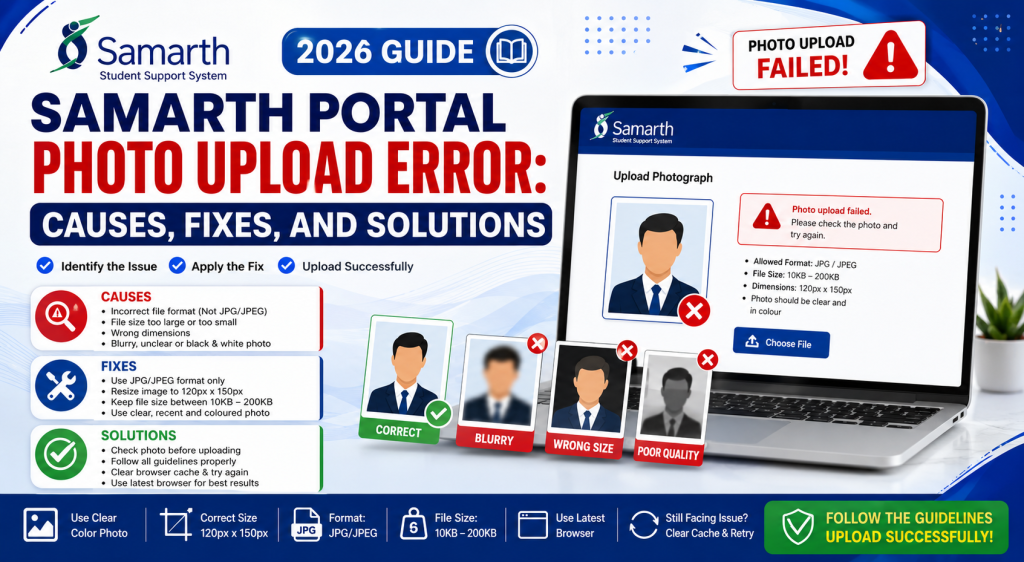
Many students face photo upload errors while registering, updating profiles, or submitting applications on the Samarth Portal. The issue usually occurs because of incorrect image dimensions, unsupported file formats, large file sizes, browser problems, or temporary server issues. Similar upload and verification problems have been reported by users across multiple Samarth-based university portals.
This guide explains the most common causes of Samarth Portal photo upload errors and provides practical solutions to help you successfully upload your photograph.
Why Is the Samarth Portal Showing a Photo Upload Error?
Photo upload errors can appear for several reasons:
- Incorrect image format
- File size exceeds the allowed limit
- Unsupported image dimensions
- Corrupted image file
- Slow internet connection
- Browser compatibility issues
- Temporary portal server problems
Many users report that upload problems become more common during admission deadlines and high-traffic periods.
Common Samarth Portal Photo Upload Errors
Invalid File Format
One of the most common errors occurs when students upload PNG, HEIC, WebP, or unsupported image formats instead of JPG or JPEG files. Many application portals only accept JPG/JPEG images.
File Size Exceeds Maximum Limit
The portal may reject photographs that exceed the allowed file size. Large photos taken from modern smartphones often need compression before uploading.
Incorrect Image Dimensions
Some Samarth applications require specific photo dimensions. If the uploaded image does not match the required size, the upload may fail.
Upload Failed Error
This error often occurs because of server interruptions, unstable internet connections, or temporary portal issues.
Photo Verification Failed
In some cases, the portal may reject a photograph even when it appears correct. Users have reported occasional photo verification and matching issues on Samarth-based systems.
How to Fix Samarth Portal Photo Upload Error
Check the Required Image Format
Before uploading:
- Use JPG or JPEG format
- Avoid PNG or WebP files
- Use a fresh passport-size photograph
- Save the image properly before uploading
Incorrect image formats are a common cause of upload failures.
Verify File Size
Check the official notification or application instructions and ensure that the image file size falls within the specified range.
If necessary:
- Compress the image
- Reduce image resolution
- Save the file again
Large images are one of the most common reasons for upload failures.
Resize the Photograph
If dimensions are specified:
- Crop the image correctly
- Maintain a clear facial view
- Avoid stretching the image
- Follow passport photo requirements
Incorrect dimensions frequently trigger upload errors.
Use a Desktop Browser
Many students experience fewer issues when using:
- Google Chrome
- Microsoft Edge
- Mozilla Firefox
Some users report that mobile devices may cause upload problems on portal systems.
Clear Browser Cache
To fix upload issues:
- Clear browser cache.
- Clear cookies.
- Restart the browser.
- Log in again.
- Retry the upload process.
Recommended Photo Requirements
| Requirement | Recommendation |
|---|---|
| Format | JPG / JPEG |
| Background | Plain White |
| Visibility | Clear Face |
| Quality | High Resolution |
| Orientation | Straight Facing |
| File Status | Not Corrupted |
What to Do If the Error Still Appears?
If the issue continues:
Try Another Browser
Switch between Chrome, Edge, and Firefox.
Upload During Off-Peak Hours
Portal traffic is often highest near deadlines. Uploading during non-peak hours may help avoid server-related problems.
Check Portal Notifications
Sometimes the issue is caused by maintenance or technical glitches on the Samarth Portal itself. Technical interruptions affecting admissions and examination activities have been reported on Samarth systems.
Contact University Support
If the photo still cannot be uploaded:
- Contact the university helpdesk
- Raise a support ticket
- Attach screenshots of the error
- Provide your registration details
Tips to Avoid Photo Upload Errors
Use a Recent Passport-Size Photograph
Old or unclear photographs may create verification issues.
Avoid Screenshots
Screenshots often have incorrect dimensions and formats.
Keep a Backup Copy
Save:
- Original photo
- Compressed version
- Resized version
Upload Early
Avoid waiting until the last date of registration when server traffic is highest.
Frequently Asked Questions
Why is Samarth Portal not accepting my photo?
The most common reasons are incorrect file format, oversized images, unsupported dimensions, or temporary portal issues.
Which photo format is accepted by Samarth Portal?
Most Samarth-based applications accept JPG or JPEG image formats. Always check the official application instructions.
Can I upload a mobile photo?
Yes, provided the image meets the required format, dimensions, and file size requirements.
Why does Samarth Portal show “Upload Failed”?
This can happen because of server traffic, browser issues, unstable internet connections, or incorrect image specifications.
How can I reduce photo size for Samarth Portal?
You can compress the image using photo editing software or an image compression tool while maintaining acceptable quality.
Conclusion
Samarth Portal photo upload errors are usually caused by incorrect image specifications, browser issues, or temporary server problems. By checking the file format, dimensions, and file size before uploading, most errors can be resolved quickly. Following the recommendations in this guide can help ensure a smooth registration and application experience.